Linear
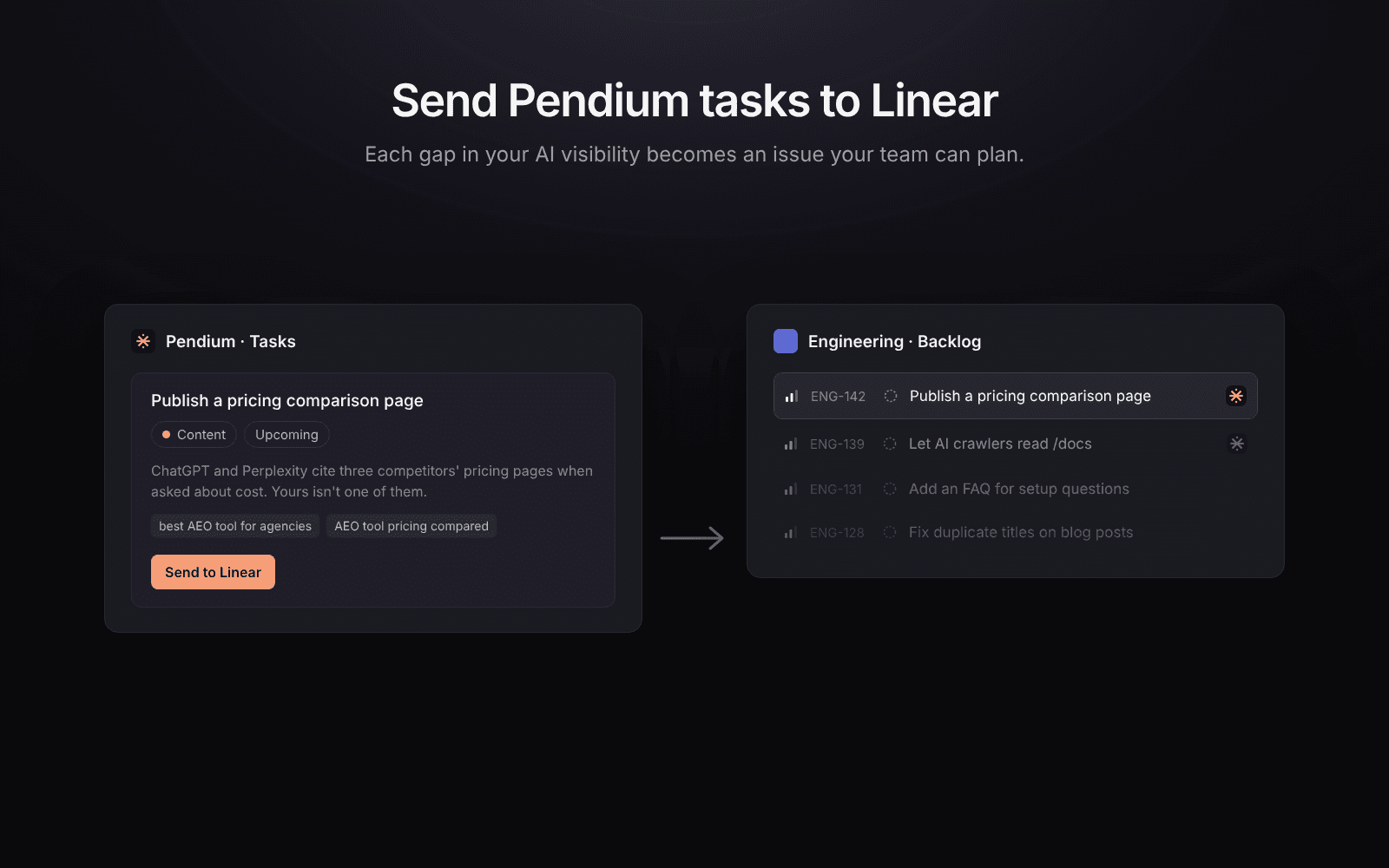
Send Pendium tasks to your Linear team as issues, with the AI questions each task targets and a link back to Pendium.
Pendium finds where AI assistants leave your brand out of their answers and turns each gap into a task: publish a comparison page, fix a page AI crawlers can't read, get listed on a site that ChatGPT cites. Most of that work is done by a developer, a designer or a writer, and many teams plan that work in Linear.
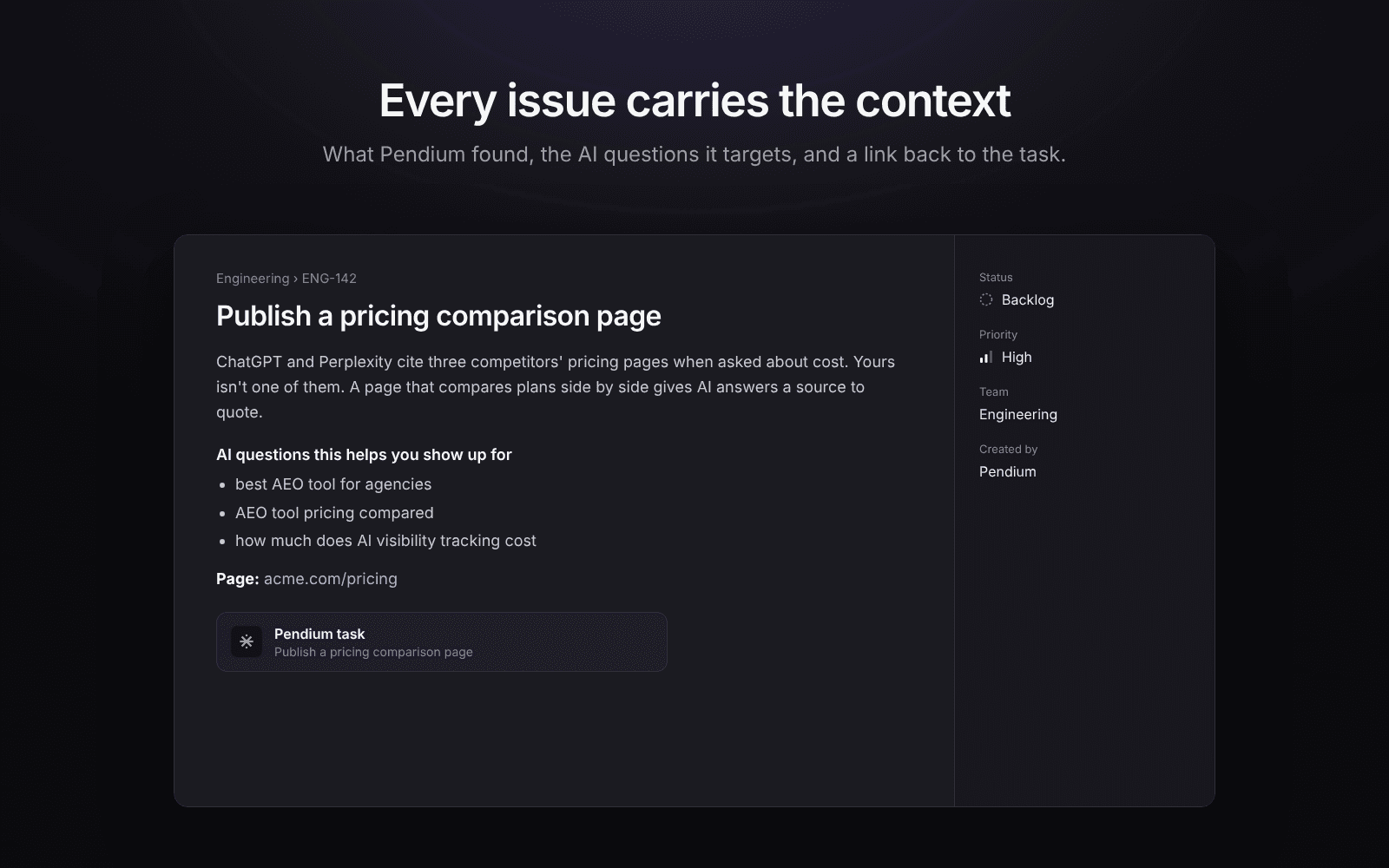
The Linear integration sends a Pendium task to your Linear team as an issue. The issue has the task's details, the AI questions it should help you appear in, the page it's about, and a link back to the task in Pendium. Your team tracks the work in Linear; Pendium's next scan shows whether it moved your visibility.
What you need
- A Pendium brand. Anyone with access to the brand can connect Linear. Only the brand's owner can disconnect it.
- A Linear account in the workspace where the issues should go. You don't need to be a Linear admin.
Connect Linear
- In Pendium, open Integrations from the side menu and choose Tasks → Linear.
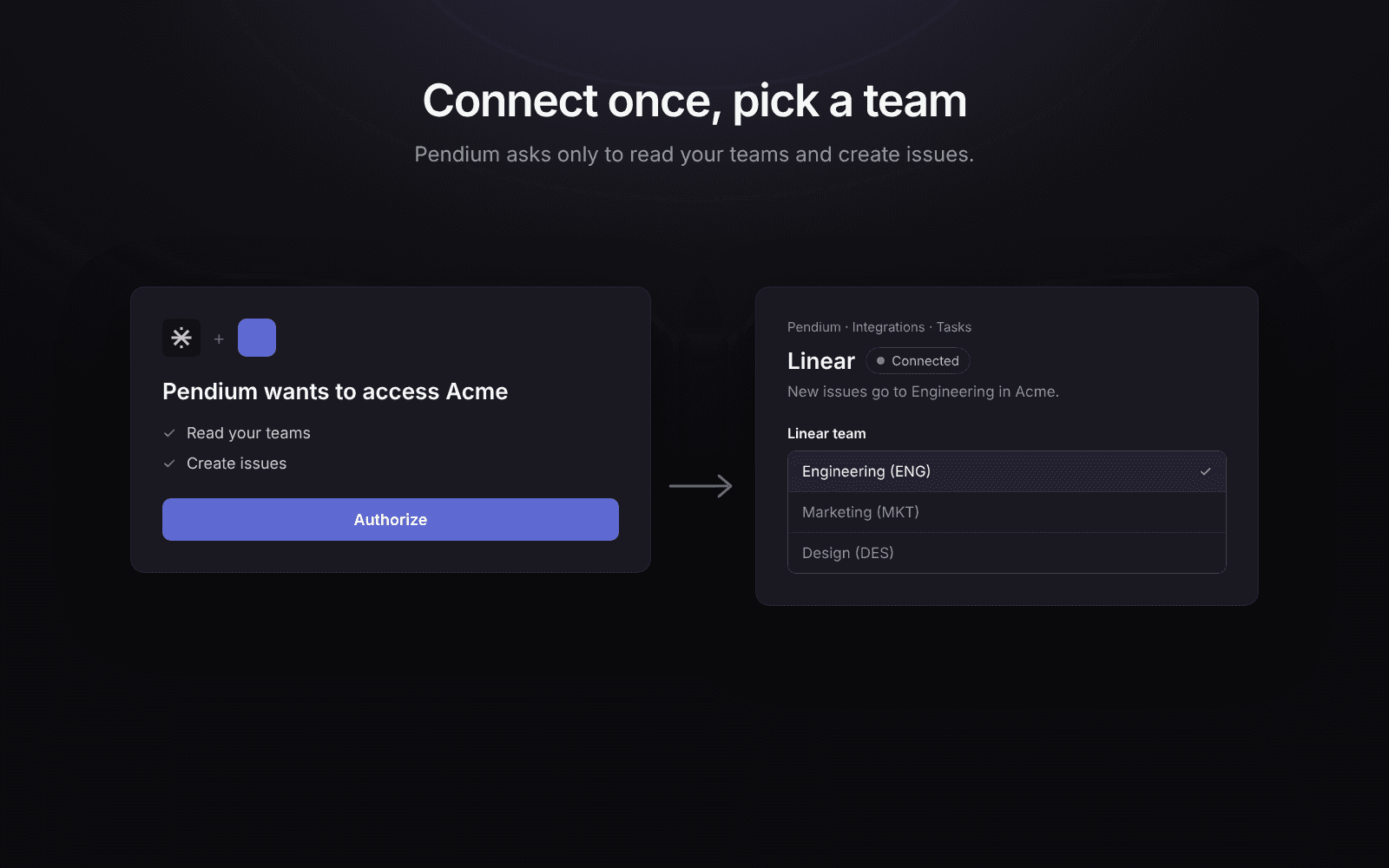
- Click Connect. Linear asks you to approve Pendium for one workspace. If you belong to several workspaces, pick the one at the top of the Linear screen first.
- Approve. Linear sends you back to Pendium.
- If your workspace has more than one team, pick the Linear team that new issues should go to. With one team, Pendium picks it for you.
Pendium asks Linear for two permissions: read (to list your teams) and create issues. It can't edit, move, comment on or delete issues.
Send a task to Linear
- Open your brand's Tasks tab (in Business Review).
- Hover a task and click Send to Linear.
- Pendium creates the issue in your team's backlog and shows its ID, for example
ENG-142. Click the ID to open it in Linear.
If you send the same task again, Pendium finds the issue it already made and opens that one. It never creates a copy.
What's in each issue
The person or coding agent who picks up the issue may never have used Pendium, so each issue explains itself:
- What Pendium is and that the issue came from a scan of your brand.
- The task: what Pendium found and what to change.
- The AI questions the task should help you show up for, with a note to answer them directly near the top of the page.
- Improve, don't duplicate: check for a page that already covers the topic and improve it instead of making a new one. Pendium lists your posts that look related. Two pages on one topic split the AI citations between them.
- Done when: the page is live and the task is marked done in Pendium.
- Pendium's MCP server: how a coding agent can connect to
https://pendium.ai/api/mcpand which tools give it your brand's facts, voice, existing pages and latest scan, plus the brand and task ids to use. - Priority copied from the task, and a Pendium link attached to the issue.
Send tasks automatically
Turn on Send automatically in Integrations → Linear and Pendium sends tasks after each scan, so your Autopilot's weekly scans keep your backlog current without anyone clicking. To keep the backlog clean, it only sends tasks that are:
- High priority and still open.
- From a scan, tied to AI questions Pendium measures. Tasks you added by hand, and setup tasks you finish inside Pendium, stay in Pendium.
- Not content Pendium writes itself. While Pendium's Autopilot writes your posts, content tasks stay with it.
It only sends tasks created after you turn it on, so the tasks already on your board stay in Pendium. It sends at most 5 new issues per scan, and never sends the same task twice, even if you delete its issue in Linear.
Change the team or disconnect
Open Integrations → Linear:
- Linear team changes where new issues go. Issues you already sent stay where they are.
- Send automatically turns sending after each scan on or off.
- Check again confirms Pendium can still reach Linear and that the team still exists.
- Disconnect removes Pendium's access and ends the approval in Linear. Issues you already sent stay in Linear.
You can also remove Pendium from Linear itself, in your Linear account settings where authorized applications are listed.
Troubleshooting
| What you see | What to do |
|---|---|
| "Linear isn't connected for this brand yet" | Connect Linear in Integrations → Linear. |
| "Pick the Linear team for new issues" | Choose a team in Integrations → Linear. |
| "Linear ended the connection" | Someone removed Pendium in Linear, or the approval expired. Click Reconnect. |
| "The team is gone from Linear" | The team was deleted or archived. Pick another team. |
Questions or problems: email support@pendium.ai.
Related
- Recommendations: how Pendium finds and ranks tasks.
- Integrations & CMS Sync: connect your blog.